Sports Team Communication: How Coaches Keep Players and Parents in the Loop
Ask any youth coach what the hardest part of the job is, and many won't say tactics or training. They'll say communication. Practice moved because the field is flooded. The away game starts an hour earlier. The new kit is ready to collect. And somewhere, a parent is standing at an empty field, wondering why nobody told them.
Good team communication isn't about sending more messages. It's about making sure the right information reaches the right people, and that they can find it again when they need it.
Who you're actually talking to
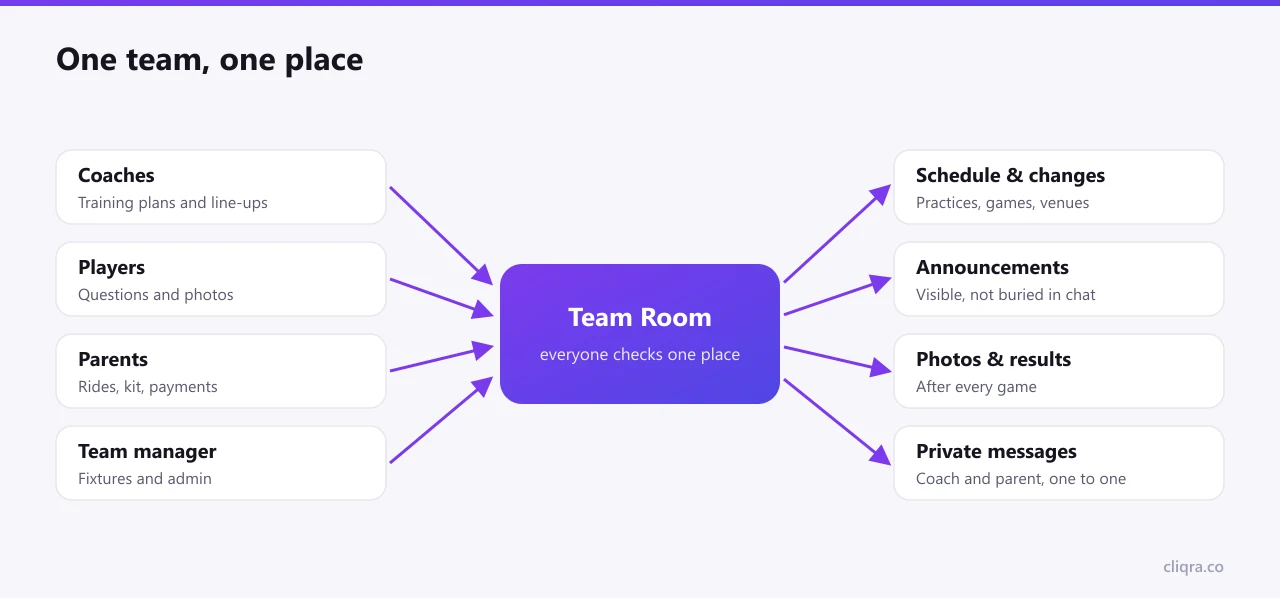
A team has more audiences than it looks like:
- Players want to know when and where, and who's playing.
- Parents (for younger teams) need logistics: times, venues, rides, kit, payments.
- Coaches and assistants need training plans, availability and line-ups.
- The team manager or club handles fixtures, registrations and anything official.
Most teams end up with a separate chat for each group, plus emails from the club, plus a printed fixture list. Information gets copied between them, sometimes wrongly. The better approach is one place everyone checks, with private channels only for what's genuinely private.
Make the schedule the single source of truth
The schedule is the most important thing a team shares, and the thing that changes most often. It deserves a permanent home that isn't a message.
A shared calendar with practices, games and venues, updated by the coach or team manager, solves most problems on its own. When something changes, update the calendar first, then post a short note: "Saturday's game moved to 9:30, calendar updated." Parents learn quickly that the calendar is always right, and stop asking in the chat.
If your club already maintains a Google Calendar, you can show it directly in a Cliqra Room instead of copying events by hand.
Announcements that don't get buried
Some messages matter for weeks: the season's code of conduct, the tournament packing list, how payments work, the emergency contact. In a chat, they're gone by Wednesday.
Put them in the team's space as a permanent section, not a message. In a Cliqra Room, you can keep them as text near the top, or turn an important discussion post into part of the Room with one click. The Discussion guide explains how.
For genuinely urgent changes, like a cancelled game an hour before kick-off, an @all mention notifies every member at once. Use it sparingly, and people will actually read it when it matters.
Photos and results
This is the part players and families enjoy most, and it does real work for the team. Photos from games and tournaments make people feel part of something. Results, especially for younger teams, are a chance to celebrate effort as much as winning.
A simple habit: after each game, one person posts three or four good photos and a two-line summary. It takes five minutes and keeps the team's space alive between games. Over a season, it becomes the team's history.
Private conversations stay private
Some conversations should never happen in front of the team: a child's injury, a behavior concern, a family that can't afford the tournament fee. Coaches need an easy way to message one parent directly, without exchanging personal phone numbers.
In a Cliqra Room, any member can send a private message to another, or start a small group conversation with a few people, such as the coaches. Nobody else sees it. See Private Messages, Group Messages and Notifications for how it works.
A routine for the season
- Before the season: set up the team space, add the full schedule, post the code of conduct and the FAQ, and invite players and parents.
- Every week: confirm the next game in the calendar, post a reminder two days before, and share photos after.
- When something changes: calendar first, short note second, @all only if it's within 24 hours.
- At the end: post the season summary and the best photos, and keep the space for next year.
Share the load
A coach who also runs all the communication will eventually stop doing one of the two well. Give the team manager or a helpful parent editing rights, so they can update the schedule and post the photos. One or two helpers is enough. How to Invite Members and Manage Roles explains the difference between admins, editors and members.
The result
When team communication works, you notice it mostly by what stops happening: the same question asked five times, parents at the wrong field, the kit nobody knew about. Players turn up on time, parents feel informed, and the coach gets to spend more time coaching. That's the whole point. For more on giving a club or team a proper online base, read How to Create a Digital Home for Your Club, Team, or Community.