Private Messages, Group Messages and Notifications
Not every message belongs in front of the whole group. The coach needs to tell one parent that their child has a fever. Three people organizing the end-of-season party need to talk without spoiling the surprise. Someone wants to say thank you without the whole Room watching.
That's what messages are for. This guide covers private and group messages, where to find your conversations, and how notifications work so the important things reach you and the rest doesn't.
Three ways to talk
Before getting into the buttons, it helps to know which tool fits which job.
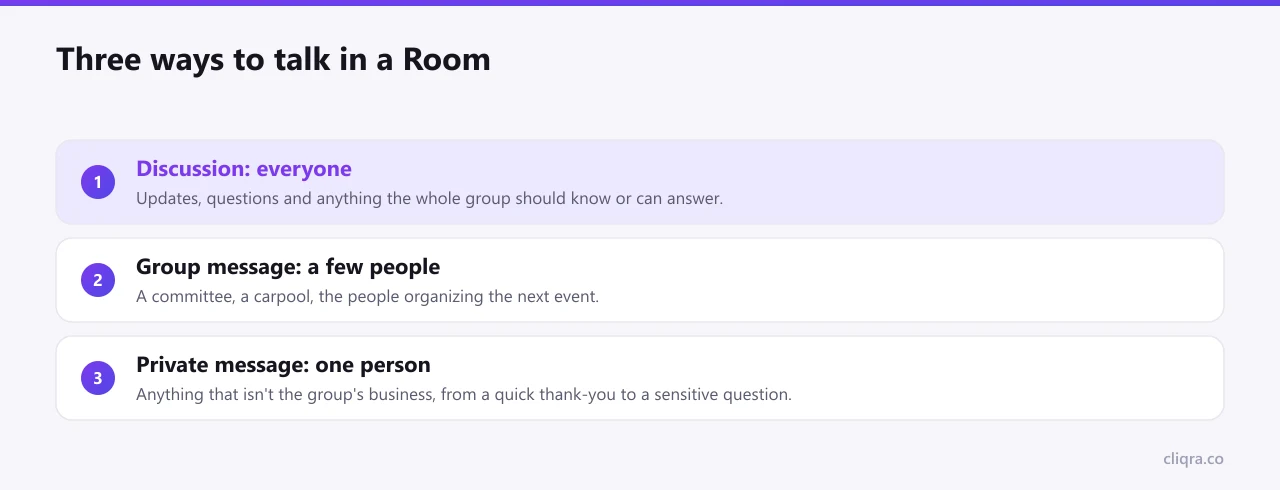
The Discussion is for the whole Room. A group message is for a few people you choose. A private message is for one person. A good habit is to pick the smallest audience that needs to see the message. Your members will notice, and they'll trust the Discussion more because it isn't full of side conversations.
If you haven't used the Discussion yet, this guide explains it.
Sending a private message
There are two ways to start one.
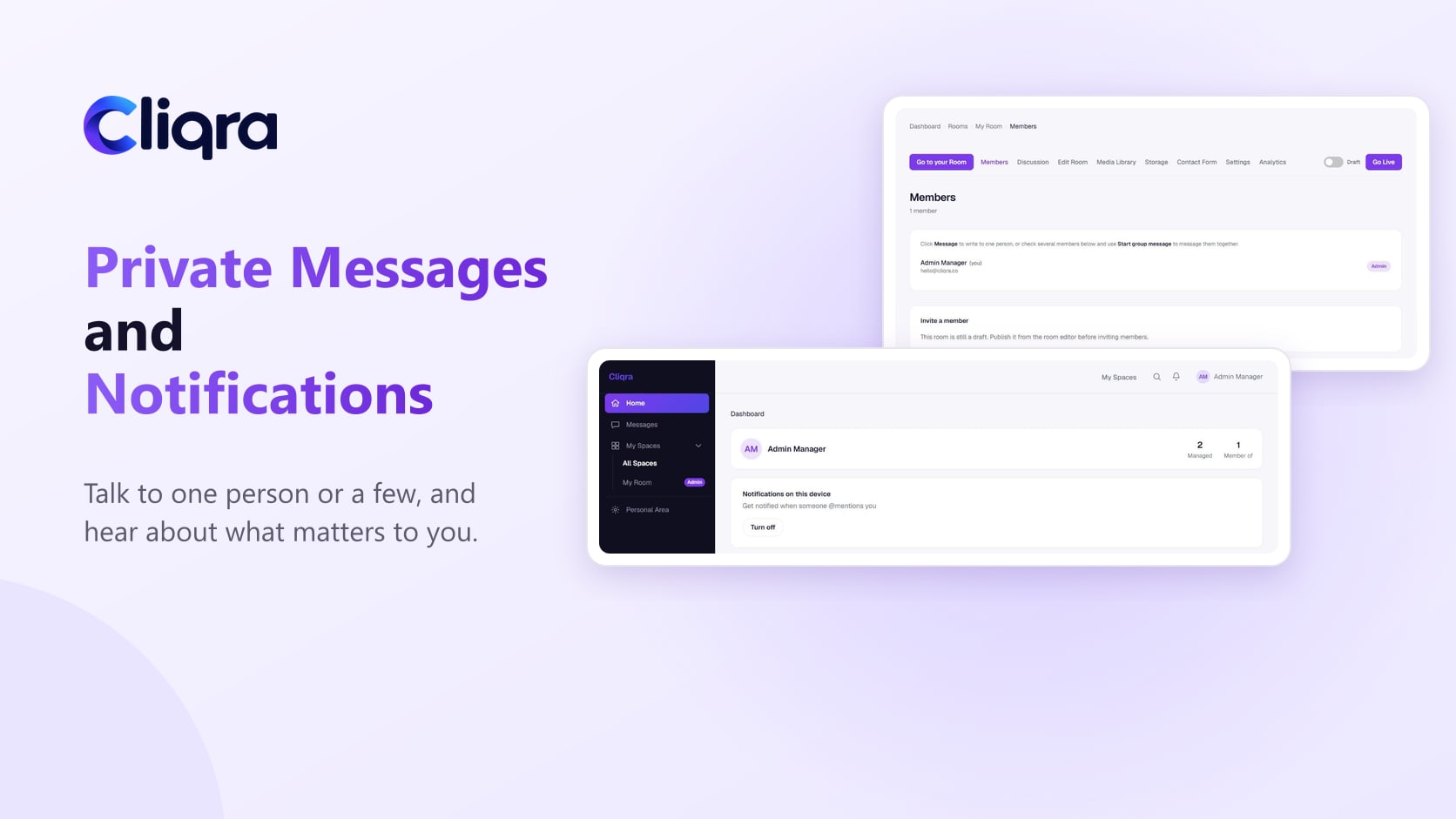
From the Members tab, click Message next to the person's name. From inside the Room, the Discussion has a Message a member privately button at the top, which lets you pick someone without leaving the page.
Either way, a conversation opens with just the two of you. Nobody else in the Room can see it, including the Room's admin.
Starting a group message
In the Members tab, tick the people you want to include and click Start group message. Everyone you selected is in the same conversation.
Group messages are good for small working groups inside a bigger community: the committee, the parents driving to the away game, the three people choosing next month's book. When the task is done, the conversation can simply go quiet.
In a group message, @all works too. It notifies everyone in that conversation, not the whole Room.
Your conversations in one place
Every private and group conversation is collected under Messages in the side menu, across all the Rooms you belong to. The newest conversations are at the top, with the last message shown underneath each one.
Each conversation has a small menu with two options:
- Archive moves it out of your main list without deleting anything. Useful for conversations that are finished but worth keeping, like the trip planning from last summer. You can unarchive it any time.
- Delete removes the conversation from your list.
You can also react to individual messages with an emoji, the same way you would in the Discussion.
How notifications work
Cliqra doesn't notify you about every message in every Room. That's on purpose. You get a notification when something is aimed at you:
- someone sends you a private or group message,
- someone @mentions you in a Discussion or a conversation,
- someone reacts to something you posted.
Notifications appear under the bell icon at the top of the app. A dot tells you there's something new, and each notification takes you straight to the message or post it's about.
Notifications on your phone
If you want mentions to reach you even when Cliqra isn't open, turn on notifications for your device. On the dashboard there's a card called Notifications on this device with a Turn on button. Your browser will ask for permission; say yes.
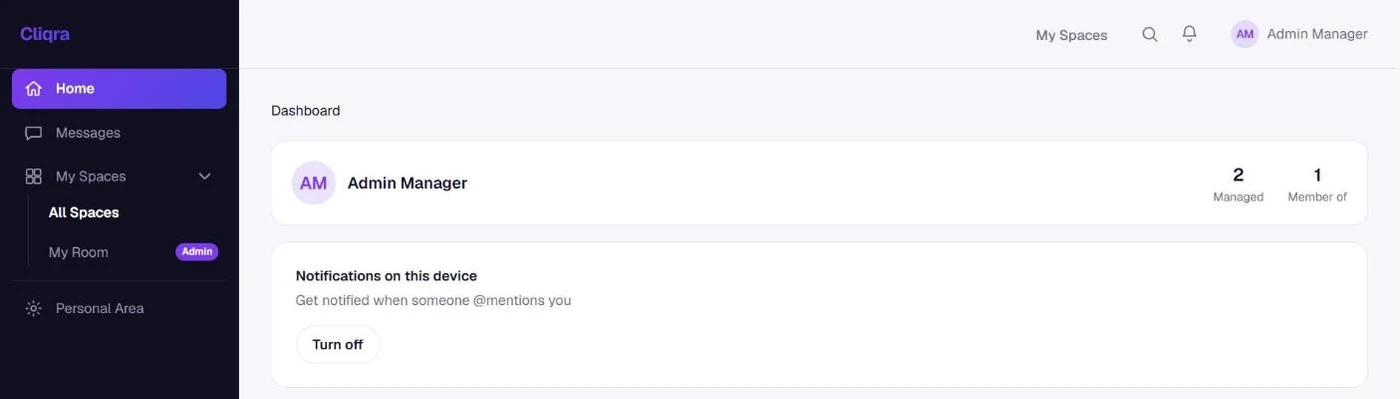
The setting is per device, so turn it on separately on your phone and your laptop if you use both. A badge also appears on Cliqra's app icon when you have unread mentions, even if the app is closed.
On a phone, it's worth installing Cliqra as an app. Look for the Download App button at the bottom of the app. It adds an icon to your home screen, opens without the browser's address bar, and makes notifications feel like any other app's.
Tips for Room admins
- Tell members once that private messages exist. Many people assume everything has to go through the group. A short line in the welcome text helps.
- Ask members to turn on notifications. If they don't, mentions only reach them the next time they open the app.
- Move side conversations out of the Discussion. If two people start a long back-and-forth in the feed, a friendly "maybe continue this in a private message?" keeps the Discussion readable.
Next, if your group shares a lot of photos and files, read Media Library and Storage. And if you're the one setting things up, How to Invite Members and Manage Roles covers getting everyone in.