Using the Discussion: Posts, Replies, Reactions and @Mentions
The Discussion is where a Room comes alive. The calendar and the welcome text tell people what's going on; the Discussion is where they actually talk about it.
It's built to feel familiar if you've used a group chat, with a few differences that make it easier to live with. This guide goes through what you can post, how replies and reactions work, and how to use @mentions without annoying everyone.
Two places to talk
There are two ways to have a conversation in a Room, and they suit different things.
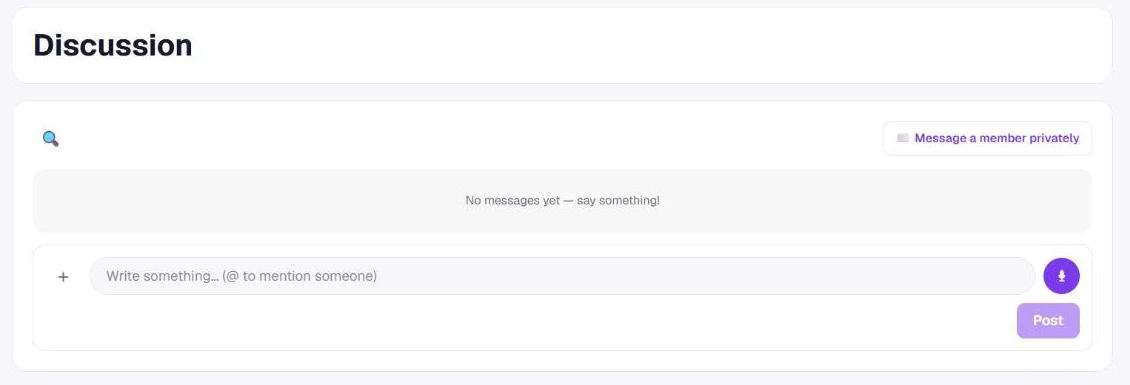
The Discussion widget sits on the Room itself, usually near the bottom. It's a running feed: short messages, quick questions, photos from last night. Members see it every time they open the Room.
The Discussion tab is for posts with a title. Think of it as the place for topics people will come back to: "Carpool for the away game", "Book suggestions for next month", "Questions about the end-of-year trip". Each post has its own page with comments underneath, and there's a search box that looks through posts, comments and authors.
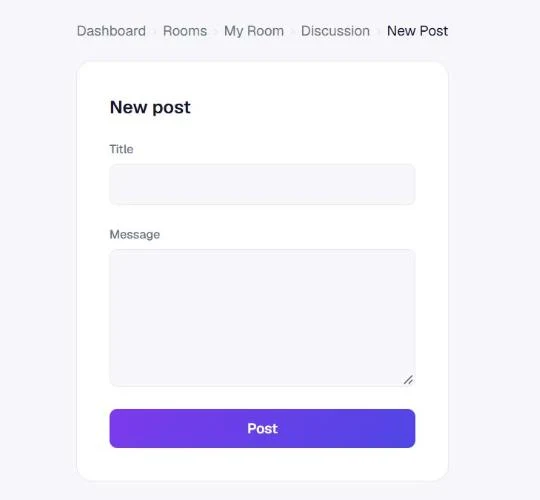
A simple way to choose: if it's a one-liner, use the feed. If people will need to find it again next week, give it a title.
What you can post
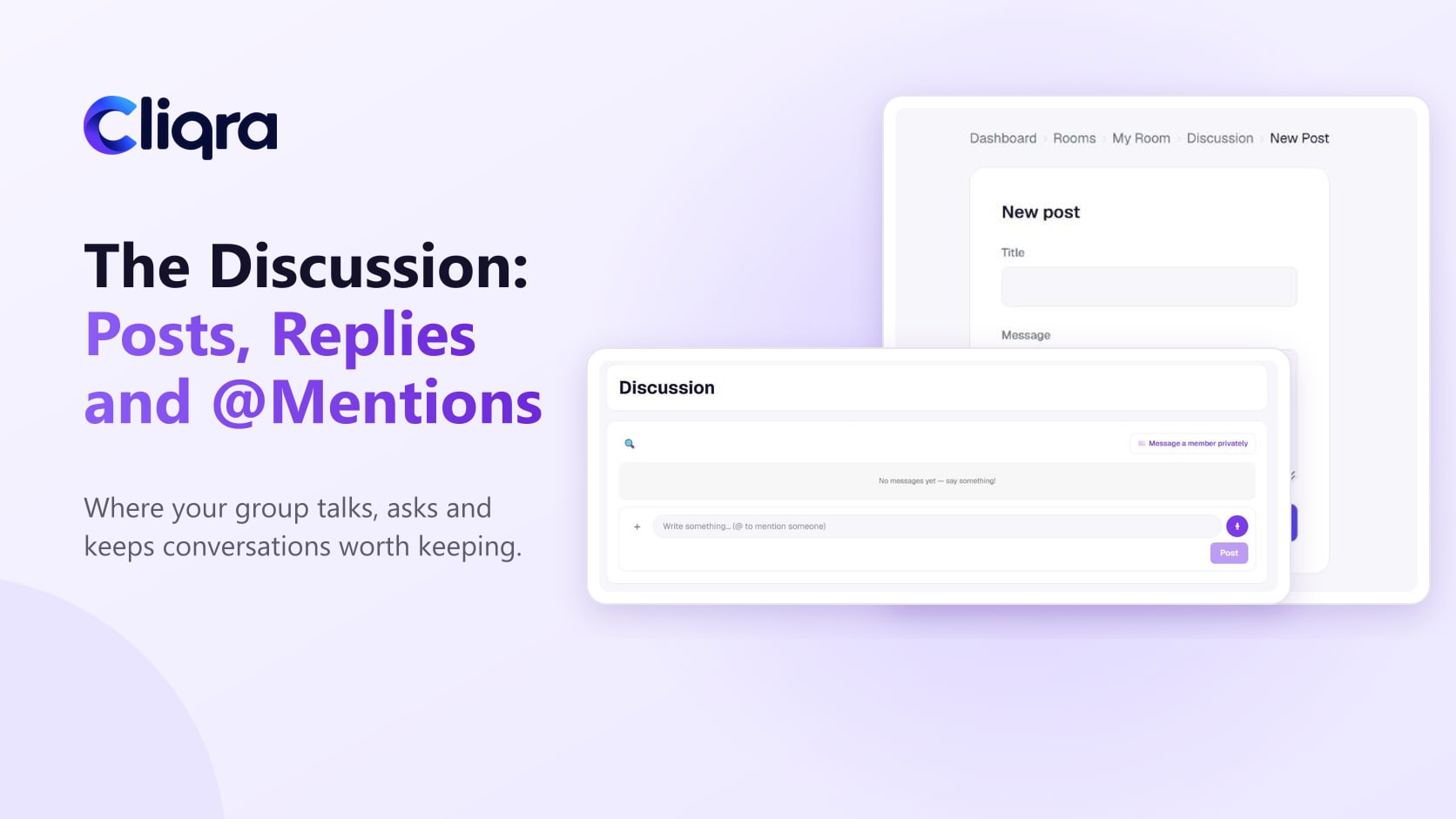
In the Discussion widget, type in the box that says "Write something… (@ to mention someone)" and press Post. The + button next to it lets you attach a photo or a file, and the microphone button records a voice note, which is handy when you're walking to practice and don't want to type.
Photos and files posted in the Discussion count toward the Room's storage, and every image also appears in the Room's Media Library. More on that in Media Library and Storage.
Replies keep conversations together
In a group chat, a question asked at 9am gets answered at 4pm, with thirty messages in between. Nobody can tell what the answer refers to.
In the Discussion, you reply to a specific post. The replies stay with it as a thread, and the post shows how many replies it has. Someone catching up in the evening can open the thread and read the question and the answers in order.
Encourage your members to reply in the thread rather than posting a new message. It takes a week or two before it becomes a habit, and then the feed gets noticeably calmer.
Reactions instead of "thanks!"
Every post can get an emoji reaction. It sounds trivial, but it solves a real problem: twenty people writing "great, thanks" under an announcement. A reaction says the same thing without a notification for everyone else.
When someone reacts to your post, you get a notification, so you know your message was seen.
@Mentions: getting one person's attention
Type @ and start typing a name. A list of members in the Room appears; pick the right person and their name is added to the message.
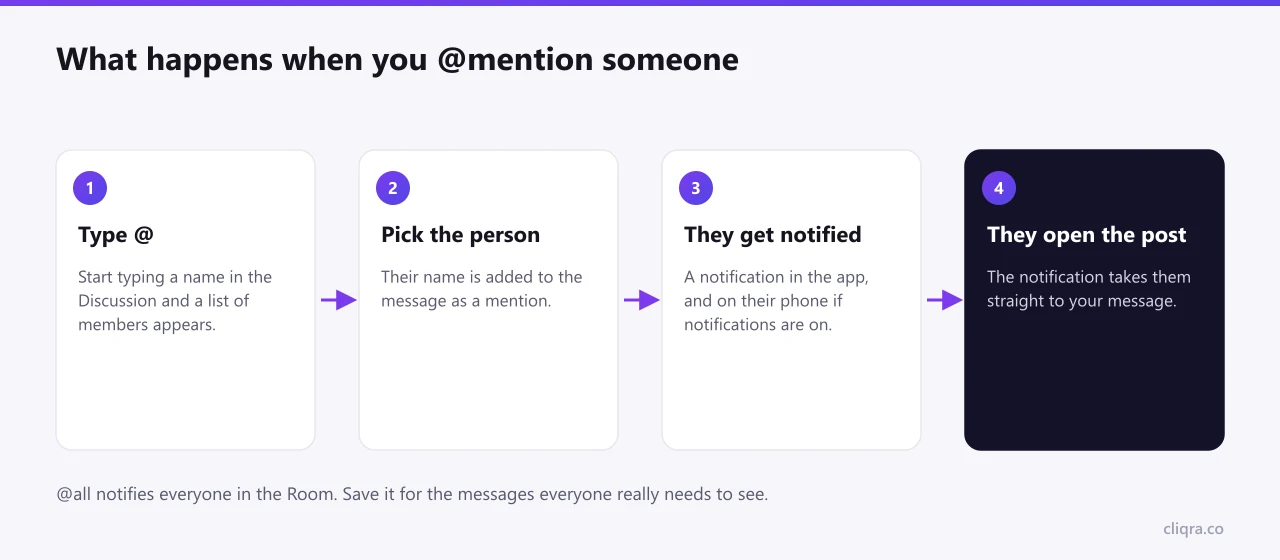
The person you mentioned gets a notification in the app, and on their phone if they've turned on notifications for that device. Tapping it takes them straight to your message.
A few habits that keep mentions useful:
- Mention when you need something from someone. "@Dana can you bring the cones on Sunday?" is a good mention. Mentioning five people under a photo is not.
- Use @all rarely. @all notifies everyone in the Room. Save it for things like a cancelled game or a change of venue. If it's used for everything, people start ignoring it.
- Don't mention to say thank you. A reaction does that job.
Turning a good post into part of the Room
Sometimes a Discussion post turns out to be the answer everyone needs: the parking instructions, the packing list, the rules for the season. On a titled post, the Room's admin or an editor can use Add to Room. It copies the post into the Room itself as a heading and text, where it stays visible instead of sliding down the feed.
It's a copy, not a link, so you can edit the new section in the builder afterwards without changing the original post.
Who can post
Every active member of the Room can post, reply and react. You don't need to give people extra permissions to take part. The roles only matter for editing the Room and managing members, as explained in How to Invite Members and Manage Roles.
Getting the first conversations going
A new Discussion is quiet. That's normal. A few things that reliably get people talking:
- Post first, and ask a question that's easy to answer. "Who's coming on Saturday?" works better than "Any thoughts?"
- Share a photo from the last meeting or game. Photos get reactions, and reactions get people back.
- Answer questions in the Discussion even when you could answer privately. Others learn where answers live.
Not everything belongs in front of the whole group, though. For anything personal, use a private or group message instead, covered in the messages and notifications guide.