Media Library and Storage: Managing Photos and Files in Your Space
Groups share a lot of pictures. The team photo, the slides from the parents' meeting, a scan of the permission slip, forty photos from the end-of-year party. After a few months, finding the one you want becomes its own small project.
Every Room and Page in Cliqra has two tabs that deal with this: the Media Library, where all the images live, and Storage, which shows how much space they take. This guide explains both.
The Media Library: every image in one place
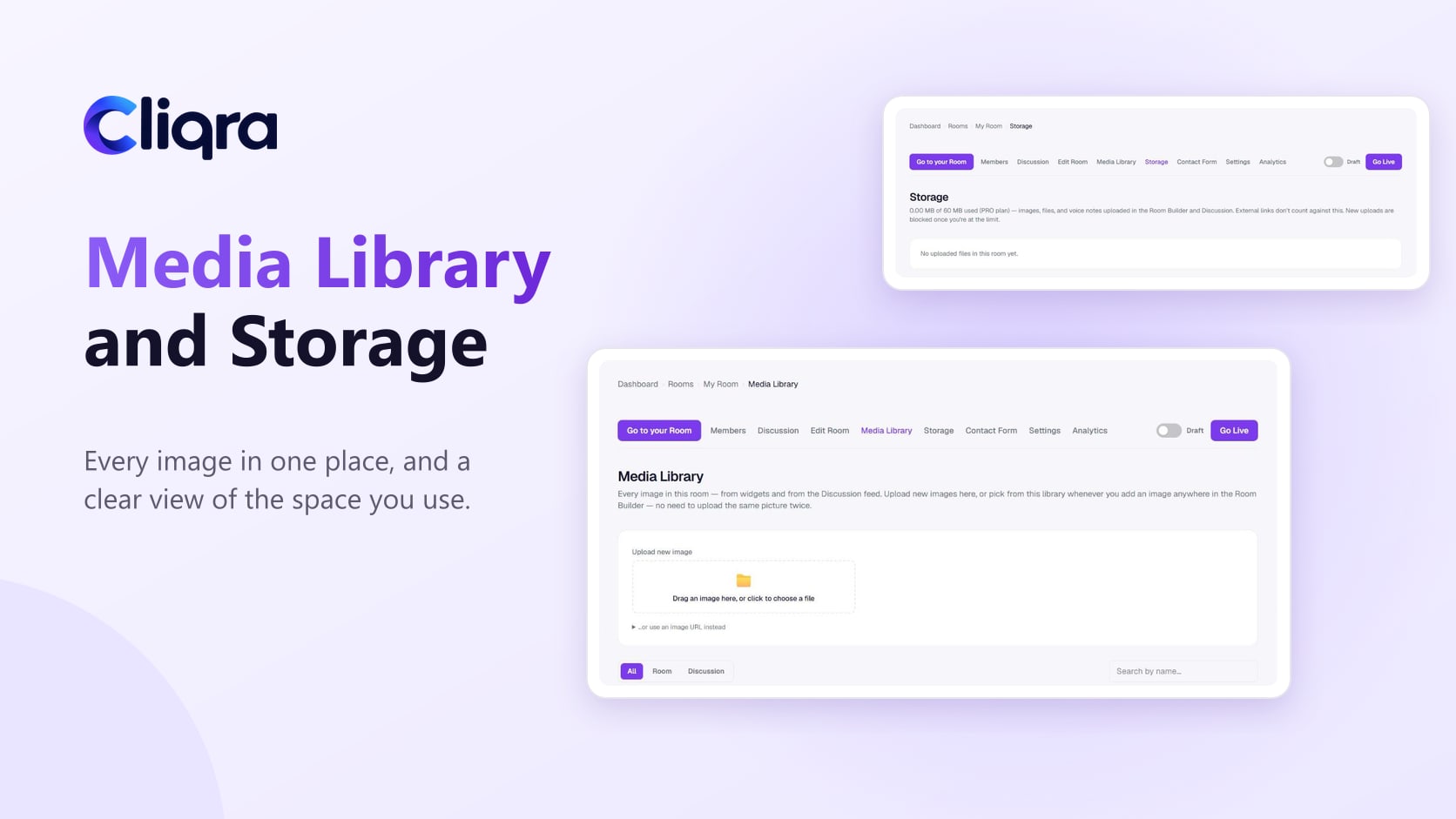
Open your Room and choose the Media Library tab. It shows every image in the Room, whether it was added in the builder (an Image or Image Slider widget, for example) or posted by a member in the Discussion.
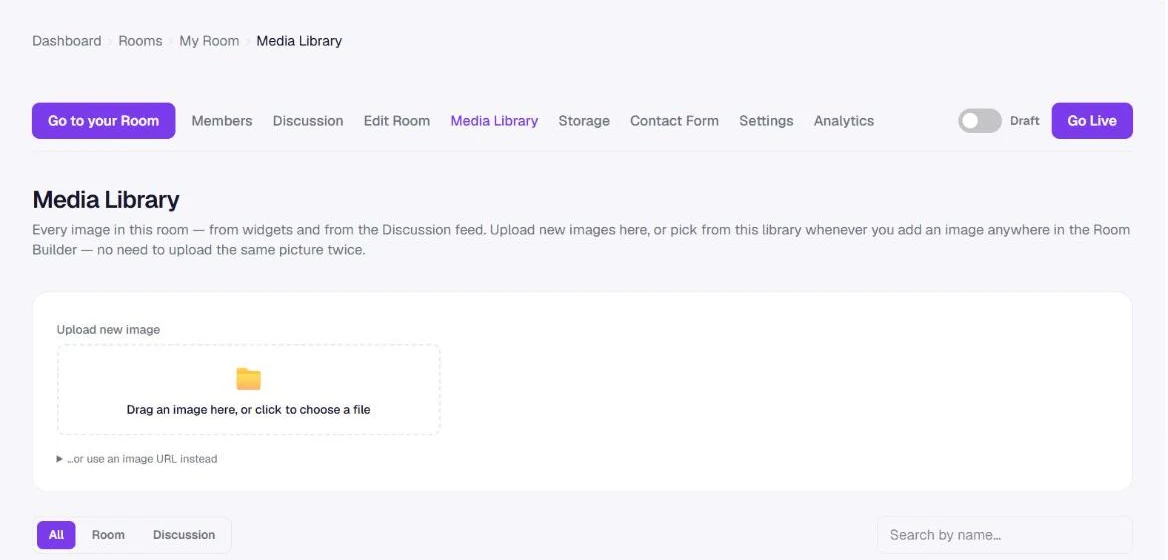
Three things make it easy to find what you need:
- Filters: All, Room, or Discussion. "Room" shows images you placed in the layout; "Discussion" shows photos members posted.
- Search by name, for when you remember roughly what the file was called.
- An In use badge on each image that's currently shown somewhere in the Room.
Uploading once, using many times
You can upload new images directly in the Media Library: drag a picture onto the upload area or click to choose a file. If the picture is already online, open "…or use an image URL instead" and paste the address.
The real benefit shows up in the builder. Whenever you add an image to a widget, you can pick it from the library instead of uploading it again. That means the team logo you uploaded for the header can be reused in the footer, the welcome section and a Page, without five copies of the same file.
Uploaded images are compressed automatically, so a 6MB photo straight from a phone doesn't eat a big chunk of your space.
Storage: how much space you're using
The Storage tab shows a single line at the top, how many megabytes the Room uses out of the amount your plan includes, and a list of the files that make up that number.
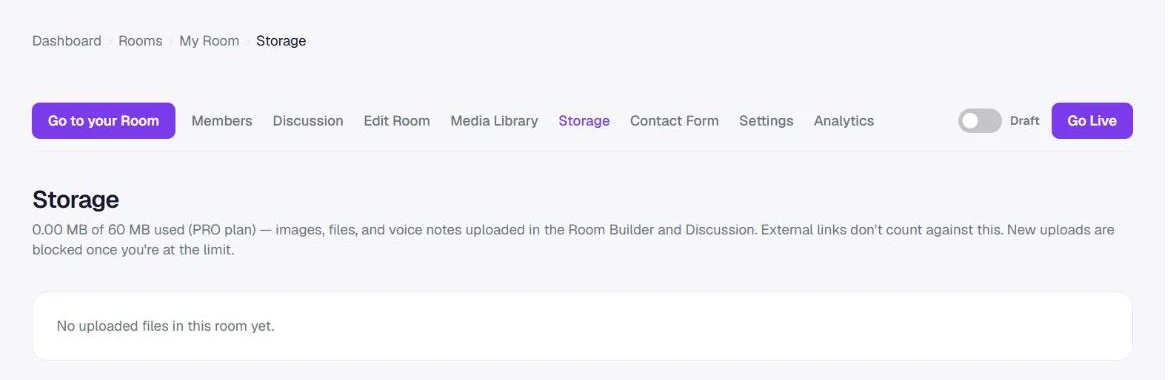
Storage covers images, files and voice notes uploaded in the builder and in the Discussion. When a Room reaches its limit, new uploads are blocked until you free some space or move to a plan with more room. Everything already there keeps working.
What counts, and what doesn't
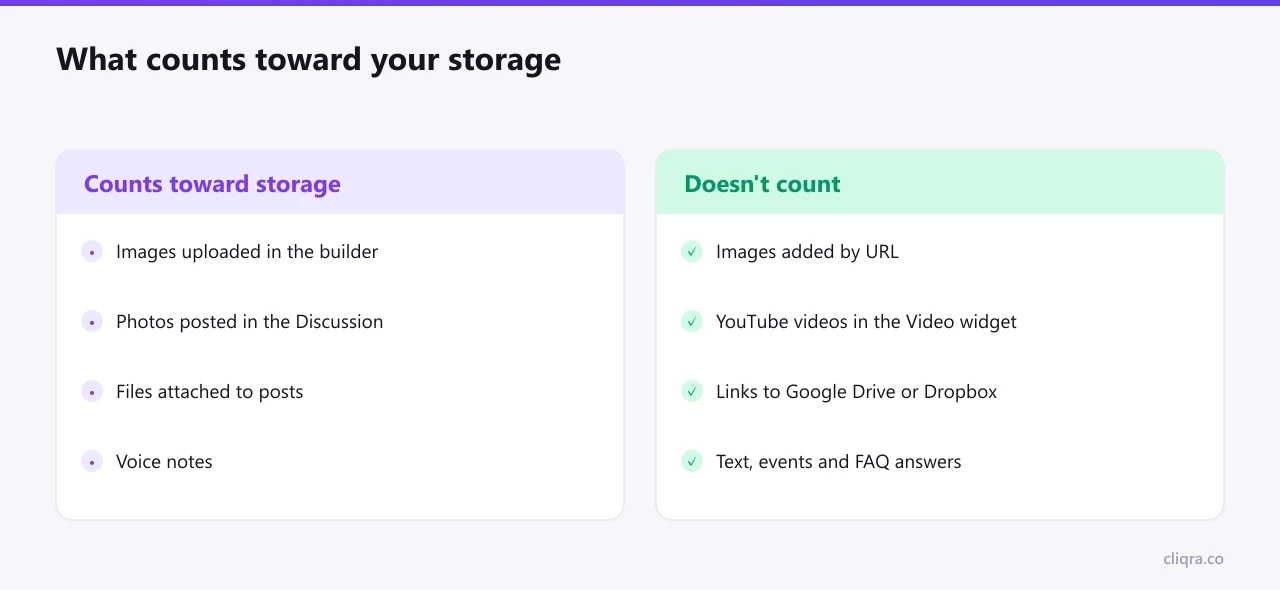
The rule is simple: if the file is stored by Cliqra, it counts. If it's a link to something stored elsewhere, it doesn't.
That gives you an easy way to share big things without worrying about space. A full-length video of the school concert belongs on YouTube, added to the Room with the Video widget. A folder of 300 trip photos can live in Google Drive or Dropbox, with a link posted in the Discussion. The Room stays fast, and your storage stays free for the things people need to open quickly.
Freeing up space
Each file in the Storage list has a Remove button. Before removing anything, check whether it's still used somewhere: in the Media Library, images that are shown in the Room carry an In use badge, and Cliqra warns you before you remove one. Good candidates for cleaning:
- Old versions of the same image, like last season's poster.
- Large files that could be a link instead.
- Test uploads from when you were building the Room.
It's worth a five-minute look at the start of each season or term. Storage rarely runs out suddenly; it fills up slowly with things nobody needs.
A few habits that help
- Name files before uploading. "team-photo-2026.jpg" is far easier to find than "IMG_4482.jpg".
- Use the Image Slider for event photos. One slider with the best ten photos is nicer to look at than forty separate posts.
- Link to big folders. Keep full albums in a shared drive and post the link.
If you're still setting up the Room's layout, How to Build a Room for Your Group shows where images fit in. For photos your members post, see Using the Discussion.