If you run a Room or a Page on Cliqra, you probably want to know what happens after you publish it. Are people visiting? Are they coming back? How are they finding your Page? And if you share a Page, what will people actually see when the link appears in a message or search result?
We’ve added two new tools to help answer those questions. Analytics gives you a simple view of how people use your Room or Page, while Search Visibility gives you control over whether your Page can appear in search engines and how it looks when someone shares the link.
Both tools are available from the space you manage, alongside the other tools you already use.
Where to find them
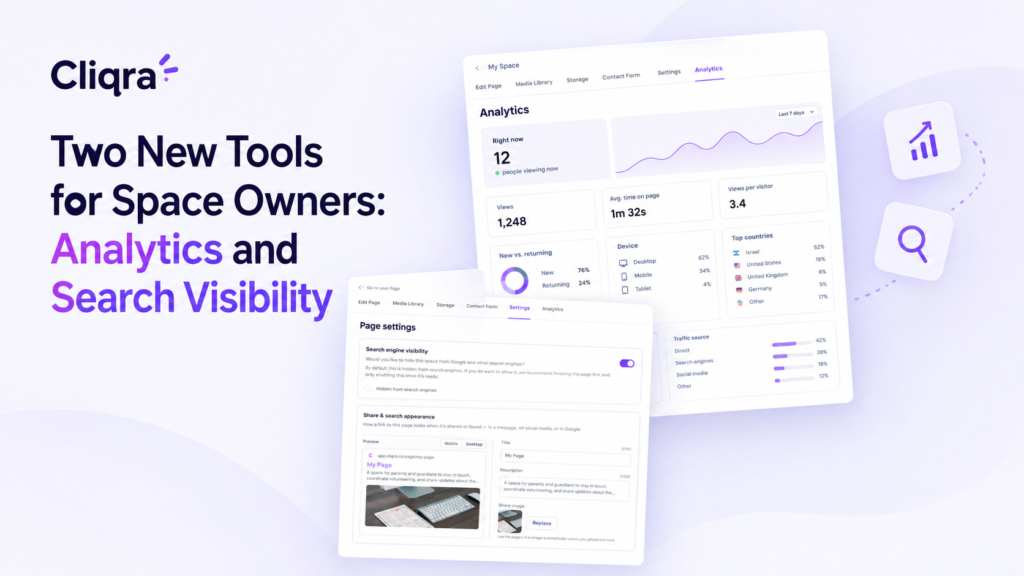
Open any Room or Page you manage. Along the top you’ll find the usual options such as Members, Discussion, Edit Room, Media Library, and Storage. You’ll also see Settings and Analytics.
These options are only available to people who manage the space, such as admins and editors. Regular Room members don’t see them, and visitors to a public Page don’t see them either. Both tools are available for Rooms and Pages.
Analytics
The Analytics tab gives you a simple picture of what is happening inside a specific Room or Page. There’s no tracking code to install and nothing you need to configure before you start.
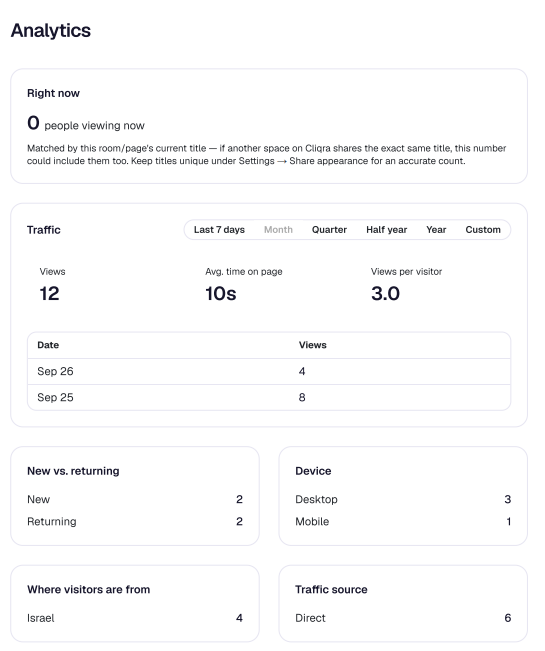
At the top, you can see how many people are viewing the space right now. This can be useful when you’ve just shared a link and want to see whether people are arriving.
Below that, you can choose a time range such as the last 7 days, month, quarter, 6 months, year, or a custom range. You’ll see Views, Average time on page, and Views per visitor, along with a day-by-day view of your traffic.
You can also see more about the people visiting your space: whether they are new or returning visitors, which device they use, which countries they are visiting from, and where the traffic came from, such as a direct link, a search engine, or social media.
The useful part isn’t just seeing the numbers. It’s being able to use them to make better decisions. If you publish a new schedule and see a jump in visits the next day, you know people are checking it. If most visitors use mobile, you can make sure the most important information is easy to find on a smaller screen. If people visit once but rarely come back, you might want to give them a reason to return, such as keeping a calendar updated or regularly adding new content.
For a public Page, traffic sources can also tell you how people are finding you. If most visitors arrive from social media, that gives you useful context when you decide where to share the Page next.
Search Visibility
The second tool is available under Settings. It gives you control over how your public Page can appear outside of Cliqra.
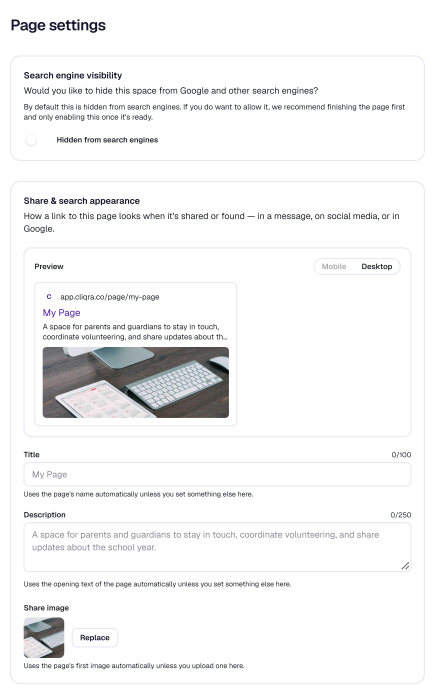
The first setting is Search engine visibility. This determines whether search engines such as Google are allowed to show your Page in their results.
It is turned off by default. This means a new Page won’t automatically start appearing in search results while you’re still building it. Once your Page is ready and you want people to discover it through search, you can turn the setting on.
This can be useful for Pages that are meant to reach people who don’t already have the link. A local club, class, event, service, or community can use search visibility to make its Page easier to discover. If your Page is only intended for people you send the link to directly, you can simply leave it turned off.
Rooms work differently. A Room requires people to sign in, so search engines can’t access the private content inside it. Your members’ conversations, files, and other private content remain behind the login.
The second part is Share & search appearance. This controls how your Page can appear when its link is shared or displayed in search results. You can set the title, description, and share image, and a preview lets you see how it will look before you publish the changes.
You don’t have to set these manually. By default, Cliqra uses the Page’s name as the title, the opening text as the description, and the first image on the Page as the share image. If you want more control, you can replace them with your own content.
A good title should tell someone what the Page is about even if they have never seen it before. Instead of simply calling a Page “Sunrise,” for example, a title like “Sunrise Running Club – Tuesday & Saturday Runs” gives people much more context. The description can then explain who the Page is for, what it offers, and what someone should do next.
Using them together
Analytics and Search Visibility solve different problems, but they work well together.
You can make a Page searchable, give it a clear title and description, and then use Analytics to see what happens after people start finding it. You can see whether search engines are bringing visitors, whether those visitors stay on the Page, and whether they come back.
From there, you can make changes and see what happens over time. Update the title, improve the content, add a clearer button, or change the image you use when sharing the Page.
It’s a simple way to move from guessing to actually understanding how your Page is being used.
Both tools are available now. Open one of your Spaces and check out Settings and Analytics.